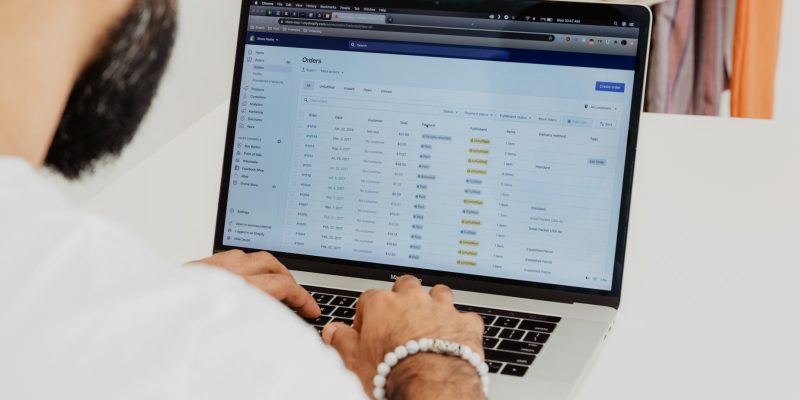

Running a retail operation across multiple warehouses, storefronts, or fulfillment centers is a logistical puzzle. Without a centralized system tying inventory together, you end up with overselling, missed fulfillment windows, and stock sitting idle in one location while another location runs dry. For merchants on Shopify, the platform's built-in multi-location infrastructure offers a structured solution — but getting the most out of it requires understanding how each component works and where the boundaries are. This guide breaks down shopify multi location inventory from setup through advanced routing and reporting, with practical guidance aimed at logistics managers and operations teams.
What Is Shopify Multi-Location Inventory?
Shopify multi location inventory is the native system within Shopify — see Shopifys locations help documentation — that lets merchants track, allocate, and fulfill stock across separate physical or virtual locations — all from a single store. Rather than managing separate systems for each warehouse or store, every location appears under one unified admin, with per-location stock counts and fulfillment assignments.
At the core of the system is the concept of a location. In Shopify's terminology, a location is any place where you stock inventory or fulfill orders. That might be a warehouse in Chicago, a retail store in Austin, a third-party logistics provider's facility, or even a virtual "supplier" location for dropshipping products.
Each variant of every product can have an independent stock count per location. When an order comes in, Shopify determines which location fulfills it based on fulfillment priority settings (covered in detail below).
Location Limits by Shopify Plan
Before building your shopify multi location setup, you need to know where your plan's ceiling sits:
| Plan | Maximum Locations |
|---|---|
| Basic Shopify | 4 |
| Shopify | 10 |
| Advanced Shopify | 10 |
| Shopify Plus | Unlimited (200+ supported) |
For most mid-market merchants with a handful of warehouses and a few retail doors, the standard Shopify plan's 10-location cap is sufficient. Large enterprises running regional distribution networks or franchise models will typically need Shopify Plus to handle the scale without restriction.
When You Need Shopify Multi-Location Inventory
Not every merchant needs multi-location enabled, but the use cases that benefit are clear-cut and common.
- Multiple warehouses: A brand operating an East Coast and West Coast fulfillment center wants orders from California shipped from the closer warehouse to reduce transit time and shipping cost.
- Brick-and-mortar retail stores: Retailers with physical locations need accurate per-store stock counts so that in-store sales deduct inventory correctly and online shoppers see accurate availability for local pickup.
- Third-party logistics (3PL) providers: Merchants outsourcing fulfillment to one or more 3PLs can designate each 3PL facility as a location, enabling order routing directly to the appropriate partner.
- Dropshipping suppliers: When some SKUs are dropshipped while others are warehouse-fulfilled, separate locations for each supplier keep the inventory accounting clean.
- Pop-up locations and temporary retail: Seasonal pop-ups or event-based selling can be added as temporary locations, with inventory transferred in and reconciled when the event closes.
- Buy online, pick up in store (BOPIS): Local pickup workflows require store-level inventory visibility — without shopify multi location inventory, you cannot offer accurate pickup availability by store.
Consider a concrete scenario: a direct-to-consumer brand with three warehouses (Chicago, Los Angeles, and Atlanta) and two retail stores (New York and Miami). Without multi-location, all inventory is pooled in a single number, meaning an in-store sale in Miami does not deduct from the Miami store's physical stock — it deducts from a shared pool that may have no relationship to what's actually on the shelf. With shopify multi location inventory enabled, each of those five locations carries its own live stock count, and fulfillment routes intelligently based on proximity, stock availability, and priority rules.
Setting Up Shopify Multi-Location Inventory
The setup process involves four sequential tasks. Each one builds on the previous, so working through them in order avoids configuration gaps that cause fulfillment errors downstream.
1. Add Locations in Admin
Navigate to Settings → Locations in your Shopify admin. Click Add location and provide the location's name, address, and whether it fulfills online orders. You can add multiple locations here — each gets a unique ID that the API uses when syncing with external systems.
Name locations clearly. "Warehouse — Chicago" is more useful than "Location 2" when you are reading fulfillment logs at 11pm diagnosing an out-of-stock event. This naming discipline pays dividends when you are managing shopify warehouse inventory across a half-dozen facilities.
2. Set Default Fulfillment Location
Within Settings → Locations, Shopify lets you drag locations into a prioritized list. The location at the top of the list is the default fulfillment source. When an order comes in and Shopify needs to choose which location to fulfill from, it moves down this list until it finds a location with sufficient stock.
This is your primary lever for shopify fulfillment priority under standard plans. Set your highest-volume, most centrally located warehouse at the top. Retail stores should typically sit lower in priority so that warehouse stock serves online orders before store stock is consumed.
3. Assign Inventory to Locations
Once locations exist, each product variant needs stock counts assigned per location. You can do this in three ways:
- Manual entry: Product → Inventory tab → adjust quantities per location. Practical for small catalogs or initial setup.
- CSV import: Shopify's inventory CSV lets you bulk-upload quantities per location using the location name as a column header. Efficient for initial stock migration.
- API or app: For ongoing sync from a warehouse management system (WMS) or ERP, inventory levels are updated via the Inventory API's
inventory_levels/setendpoint, scoped to a specific location ID and inventory item ID.
An important nuance: a product variant must be stocked at a location before it can have inventory there. Stocking means explicitly enabling that location for that variant. If a variant is not stocked at a location, Shopify will not attempt to fulfill from it even if inventory exists.
4. Set Location-Specific Shipping Rates
Shipping rates in Shopify are attached to shipping zones, and zones are scoped to origin locations. Under Settings → Shipping and delivery, each location can have its own shipping profile. This is critical when, for example, your Chicago warehouse ships nationwide with standard rates, but your New York retail store only ships within the metro area for local delivery orders.
Incorrect shipping profile configuration is one of the most common mistakes in a shopify multi location setup — more on that in the common mistakes section below.
Shopify Inventory Management Across Locations
Day-to-day shopify inventory management across multiple locations centers on three operational tasks: transfers, per-location tracking, and SKU-level consistency.
Inventory Transfers: Shopify has a built-in transfers feature (under Inventory → Transfers) that lets you move stock between locations. A transfer creates a formal record with a source location, destination location, expected arrival date, and line items. While the transfer is in transit, the inventory count at the destination location does not increase until the transfer is received and marked complete. This mirrors how physical inventory accounting works and prevents premature availability.
Per-Location Stock Tracking: The Inventory section of the Shopify admin shows a table view filterable by location. You can quickly see which locations are running low on a given SKU, which are overstocked, and where committed (ordered but unfulfilled) inventory is sitting.
SKU Synchronization: When the same SKU exists across multiple locations, the variant remains a single product record in Shopify — only the inventory level differs per location. This means product edits (title, price, images) apply globally. The only per-location variable is stock quantity, which is what enables coherent shopify inventory management without duplicating product records.
Fulfillment Priority and Smart Routing
Shopify fulfillment priority determines which location fulfills an order when multiple locations have stock. Under standard Shopify plans, the routing logic is sequential: Shopify checks locations in the priority order set in Settings → Locations and assigns the order to the first location that has sufficient stock for all items.
This has implications for split orders. If Location A has two of the three items a customer ordered but Location B has all three, Shopify's default behavior may not choose the most efficient path. The platform does not natively optimize for fewest splits — it simply works down the priority list.
For the three-warehouse, two-retail-store scenario described earlier, a sensible priority order might be:
- Chicago Warehouse (central US, lowest average transit time)
- Los Angeles Warehouse (West Coast volume)
- Atlanta Warehouse (Southeast coverage)
- New York Retail Store (online order fallback only)
- Miami Retail Store (online order fallback only)
Custom Routing on Shopify Plus: Shopify Plus merchants gain access to Shopify Flow and the Fulfillment API, which enable custom routing logic. Using Flow, you can build workflows that route orders based on customer shipping address (route West Coast orders to LA, East Coast to Atlanta), available carrier rates, or even order tags applied during checkout. Third-party order management systems (OMS) can also intercept orders via webhook and apply proprietary routing logic before sending fulfillment instructions back to Shopify.
This is where shopify multi location inventory transitions from a stock-tracking tool into a genuine operational logistics platform — particularly valuable for brands shipping 500+ orders per day where routing efficiency has a direct cost impact.
Multi-Location Inventory for Pickup and Local Delivery
Buy online, pick up in store (BOPIS) is one of the highest-converting checkout options for brands with physical retail presence. Shopify's multi-location system powers it natively.
To enable in-store pickup, go to Settings → Shipping and delivery → Local pickup and enable it for each retail location. You can set a pickup availability message (e.g., "Usually ready in 2 hours") and define which locations offer the option. During checkout, customers selecting pickup will see availability per store based on live inventory at that location.
For local delivery, Shopify lets you define delivery zones per location — a radius in miles/kilometers or a list of zip codes. Each location can have its own delivery fee, minimum order threshold, and delivery instructions. A store in Miami might offer free local delivery within 10 miles for orders over $50, while the New York store covers Manhattan and Brooklyn zip codes at a flat $8 fee.
Accurate pickup and local delivery rely entirely on per-location stock being current. A stock discrepancy at a retail location — common when in-store POS sales are not syncing in real time with shopify inventory management — will show inventory available for pickup when the physical shelf is empty. Integrating Shopify POS with your online store resolves this by recording in-store sales against the location's inventory in real time.
Shopify Apps for Advanced Multi-Location Management
Shopify's native multi-location features cover the fundamentals, but high-volume operations often need supplemental tooling for demand forecasting, automated replenishment, and cross-channel sync. The table below outlines the most widely used apps in this category:
| App | Primary Use Case | Multi-Location Support |
|---|---|---|
| Stocky (by Shopify) | Purchase orders, demand forecasting | Yes — per-location reorder points |
| Linnworks | Multi-channel inventory and order routing | Yes — maps to Shopify locations via API |
| Cin7 | Full inventory + WMS replacement | Yes — warehouse-level bin tracking |
| Stock Sync | Feed-based inventory updates from suppliers | Yes — location-targeted quantity updates |
| Shopify Flow | Automation workflows (Plus only) | Yes — trigger actions based on location-level stock events |
Stocky is the logical first stop for merchants already on Shopify who want forecasting without a separate platform. For operations that have outgrown Stocky — typically above $5M annual revenue with complex replenishment cycles — Cin7 or Linnworks offer WMS-grade functionality while maintaining tight Shopify integration.
Integrating ERPs and Warehouse Management Systems
For merchants running SAP, NetSuite, Microsoft Dynamics, or a standalone WMS alongside Shopify, the integration architecture needs to account for location-scoped inventory from the start. Poorly planned integrations that treat Shopify inventory as a single flat number — rather than a per-location figure — create chronic overselling and phantom stock issues. This is a core theme in Shopify ERP sync issues that operations teams encounter repeatedly.
The recommended approach uses Shopify's Inventory API with location-specific payloads:
- Each location in Shopify has a unique
location_id. The ERP or WMS must map its own warehouse IDs to these Shopify location IDs. - Inventory updates sent from the ERP use
inventory_levels/setwith bothinventory_item_idandlocation_id— without the location ID, the update will fail or default incorrectly. - Webhook triggers (
inventory_levels/update) can notify the ERP in near-real-time when Shopify-side events (order fulfillment, transfers received, manual adjustments) change stock levels. - For bidirectional sync, the integration must implement conflict resolution logic — typically a "last-write-wins" or "ERP-authoritative" model — to prevent loops when both systems update the same location's stock within the same sync window.
The integration layer itself is commonly built on middleware platforms (MuleSoft, Celigo, or custom Node/PHP services) that handle rate limiting (Shopify enforces a 2 requests/second REST limit on standard plans), retry logic for failed writes, and audit logging for reconciliation. If your Shopify store requires this level of integration, working with a team experienced in Shopify store development and API architecture can significantly reduce the time to a stable, production-grade sync.
Common Mistakes with Shopify Multi-Location Setup
Even experienced operators run into the same category of errors when configuring or scaling shopify multi location inventory. These are the most damaging and most preventable:
- Unassigned inventory: Adding a new location but not stocking existing product variants at that location means Shopify will never fulfill orders from it, even if you manually enter quantities there. Always stock variants at the location as a prerequisite.
- Wrong shipping rates per location: If a retail store location is set up to fulfill online orders but has no shipping profile configured, orders routed to it will either fail or charge the wrong rate. Audit shipping profiles whenever you add a new location.
- Out-of-sync stock from POS: Retail locations using Shopify POS are generally fine, but third-party POS systems (Square, Lightspeed, Clover) require an integration to deduct inventory from the correct Shopify location. Without it, online and in-store stock counts diverge within days.
- Overlooking committed inventory: Shopify distinguishes between available, committed (ordered, not yet fulfilled), and on hand inventory. Operations teams monitoring only "on hand" will misread true availability, especially during peak periods when a large committed pool isn't visible.
- Ignoring fulfillment priority after adding locations: Adding a new warehouse and forgetting to update the priority order in Settings → Locations means orders continue routing to the old default — undermining the entire reason for adding the location.
- Using locations as virtual staging areas: Some merchants create "locations" to represent in-transit or quarantine stock. While this can work, it requires careful configuration to ensure these locations cannot fulfill orders, which Shopify does not prevent automatically.
Shopify Multi-Location Inventory Reporting
Visibility into stock levels across locations is only useful if the data is actionable. Shopify's built-in reporting covers the basics, with more depth available on Advanced and Plus plans.
Stock by Location: The Inventory report in Shopify admin shows current quantities per variant per location. Exportable to CSV, this is the standard tool for weekly stock reviews. Filter by location to create location-specific snapshots for warehouse managers who should not need access to the full admin.
Inventory Velocity: The Sold by product and Sales by location reports, available on Shopify and above, let you see which locations are moving which SKUs fastest. This data drives replenishment decisions — if the LA warehouse consistently sells through a SKU 3x faster than Chicago, the purchase order allocation should reflect that.
Reorder Points: Shopify does not natively enforce automated reorder triggers, but Stocky and most ERP integrations do. Setting reorder points per location (rather than globally) prevents the scenario where a SKU's aggregate stock looks healthy while one critical location is actually at zero.
Days of Stock Remaining: Calculated by dividing on-hand quantity by average daily sales velocity, days-of-stock is the most operationally relevant metric for shopify warehouse inventory management. Most third-party apps surface this per location with configurable alert thresholds.
For B2B operations managing wholesale allocation across locations, the reporting demands compound — channel-specific stock reservations, customer-level allocation visibility, and location-based pricing all need to be accounted for. If your operation spans B2B and DTC channels, the Shopify B2B & Wholesale architecture affects how inventory is reserved and reported across locations.
Conclusion
Shopify multi location inventory is a mature, capable system for merchants operating across warehouses, retail stores, and fulfillment partners — provided it is configured correctly and maintained with operational discipline. The fundamentals — adding locations, setting fulfillment priority, stocking variants, and configuring shipping profiles — establish the foundation. Advanced routing, ERP integration, and supplemental apps build on that foundation to handle the complexity of real-world logistics at scale.
The gap between a working multi-location setup and an optimized one is usually not a Shopify limitation — it is an implementation detail: a missing shipping profile, an unstocked variant, a POS system not writing back to the correct location. Getting those details right from the start prevents the kind of stock drift and fulfillment errors that erode customer trust and inflate operational costs.
If your team is scaling into multi-location operations and needs an experienced partner to architect the Shopify configuration, ERP integration, or fulfillment routing logic, our team is available to help — reach out to discuss your specific setup.